Remove Library and Favorites from Windoze Explore
Have you ever noticed that Microsoft is unable to produce good workflows in their products? Their products have settings preferences and features all jumbled up in a horrible UI workflow.
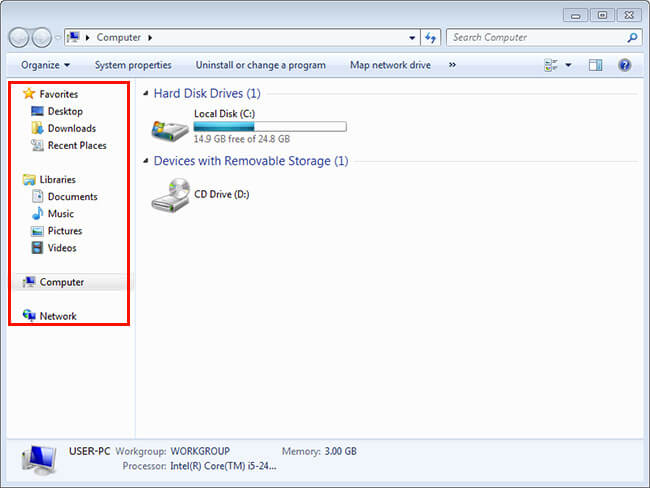
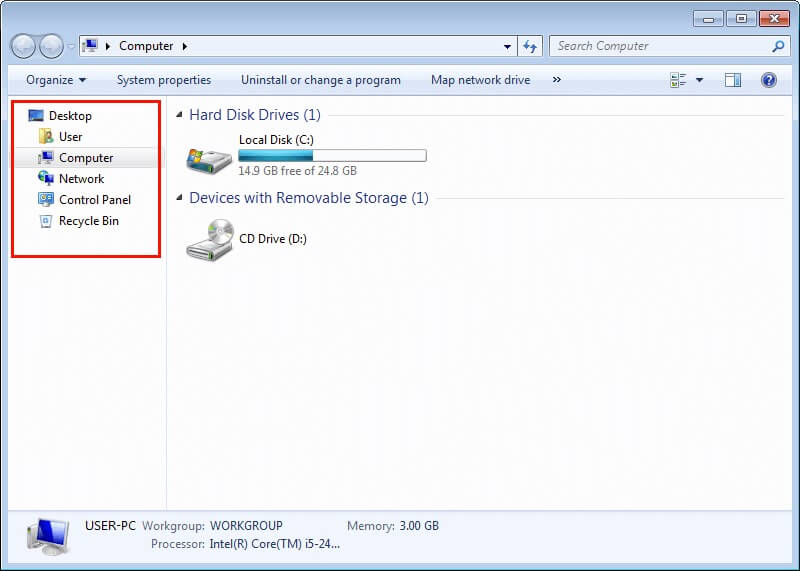
One of these annoyances is the Libraries and Favorites of Windows Explorer side panel. We can remove them useless shortcuts and add the hidden ones!
This byte-hack works on Windows Vista, 7, 8, 8.1 and 10
Before - The Mess
After - The Tidiness
How To
There is no UI setting to perform this change, the setting has to be edited directly in the registry. Also, the keys we need to change cannot be edited by user's accounts (not even administrator accounts), so we'll have to take ownership of these keys before we can change anything. Follow the steps below.
Removing Favorites
Setting up permissions
- Press
WINKEY + RorStart > Run - Type
regeditand pressENTER - Find the key:
HKEY_CLASSES_ROOT\CLSID\{323CA680-C24D-4099-B94D-446DD2D7249E} - Expand it and right click on
ShellFolderand selectPermissions - Click on the
Advancedbutton. TheAdvanced Security Settingswindow will popup - Click on the
Ownertab - Click on the button
Other users or groups - A
Select User or Groupwindow will popup. Type in your username and clickOk, and thenOkagain to close theAdvanced Security Settingspopup window. - Now in the
Permissions for ShellFolderwindow (the first one we opened) clickAddand type in your username and clickOk - Check the square box on the lower panel called
Full ControlunderAllow - Finally, click
Okto close the permissions popup window
Now your user can write to this setting
Changing the display settings for Favorites
- On the left panel of
regeditselect theShellFolderkey withinHKEY_CLASSES_ROOT\CLSID\{323CA680-C24D-4099-B94D-446DD2D7249E}and double-click the Attributes dWord value. - Change the value from
a0900100(ON) toa9400100(OFF) and close the registry - You'll need to reload the Windows Explorer process to see the change. So either reboot, Logoff OR reload explorer process
Removing Library
Setting up permissions
- Press
WINKEY + RorStart > Run - Type
regeditand pressENTER - Find the key:
HKEY_CLASSES_ROOT\CLSID\{031E4825-7B94-4dc3-B131-E946B44C8DD5} - Expand it and right click on
ShellFolderand selectPermissions - Click on the
Advancedbutton. TheAdvanced Security Settingswindow will popup - Click on the
Ownertab - Click on the button
Other users or groups - A
Select User or Groupwindow will popup. Type in your username and clickOk, and thenOkagain to close theAdvanced Security Settingspopup window. - Now in the
Permissions for ShellFolderwindow (the first one we opened) clickAddand type in your username and clickOk - Check the square box on the lower panel called
Full ControlunderAllow Finally click
Okto close the permissions popup windowNow your user can write to this setting.
Changing the display settings for Library
- On the left panel of
regeditselect theShellFolderkey withinHKEY_CLASSES_ROOT\CLSID\{031E4825-7B94-4dc3-B131-E946B44C8DD5}and double-click the Attributes dWord value - Change it from
b080010d(ON) tob090010d(OFF) and close the registry - You need to reload the Windows Explorer process to see the change. So either reboot OR kill explorer.exe.
Reloading the Explorer process:
- Open Task Manager by pressing
CTRL+SHIFT+ESC - Click on processes
- Select explorer.exe and click
End Process. ClickEnd Processin the popup that will appear. All desktop objects will disappear. Don't worry. - On the Task Manager window click on the menu
Fileand selectNew Process - Type
explorerand hit ENTER - Finish! No more Libraries or Favorites
Enabling the All Folders setting
If you removed both Library and Favorites you'll only have Computer and Network on the left panel. That's ok but not practical. It is best to activate the displaying of all folders. Follow the steps below to do that.
- Open a
Windows Explorerwindow - Right click on an empty area in the left panel (folder tree) and select
show all folders
{{ 'Comments (%count%)' | trans {count:count} }}
{{ 'Comments are closed.' | trans }}