Eject macOS Volumes Like a Boss
Sometimes our workflow can be degraded when working with a lot of mounted volumes at once. Things can get confusing. But there is a easier way to manage and eject them!
Another point is that after OS X Mavericks 10.9 the eject subroutines changed somehow. The ejection of drives and images became somewhat laggy. Sometimes you even have to click more than once. It was somehow a downgrade...
How do Eject the Boss Way
We'll use the Script Editor to create a little application and this little app will eject things faster and easier. Below are two scripts, use the first one if you want to eject immediately all "ejectable" volumes without any prompt.
If that's too radical for you there is a second script that when activated will display a little menu from where you can select the drive(s) to be ejected. There is an "All" option too.
To make things even easier, after you create the little app you can drag it to the Dock. Click it and start ejecting like a boss!
Create the App
Open /Applications/Utilities/Script Editor.app
Paste one of the scripts below in the text editor of the
Script EditorClick
File>Save. In File Format choose Application. A good name for it is Eject.app.
note: It is also possible to create a Finder service with Automator and assign a hotkey to it. That would make things super duper simple.
Eject Immediately All Volumes
use AppleScript version "2.4" -- Yosemite (10.10) or later
use scripting additions

set collection_1 to {}
set diskList to {"All Disks"}

tell application "Finder"
   try
       set diskList to diskList & (name of every disk whose ejectable is true)
   end try
end tell

if (count of diskList) is greater than 1 then
 tell application "Finder"
       eject every disk
  end tell
end if

#EOF
Eject with Menu
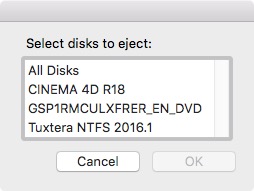
set collection_1 to {}
set diskList to {"All Disks"}

tell application "Finder"
  try
       set diskList to diskList & (name of every disk whose ejectable is true)
   on error
      display dialog "No Disks are currently mounted" buttons {"OK"} default button "OK" with icon 1
  end try
end tell

if (count of diskList) is greater than 1 then
    set theDisk to choose from list diskList with prompt "Select disks to eject:"
   try
       tell application "Finder"
           if theDisk's item 1 is "All Disks" then
                eject every disk

          else if theDisk's item 1 is "Disk Group 1" then
                repeat with i from 1 to count of items in my collection_1
                 set this_disk to item i of my collection_1
                    eject (every disk whose name is this_disk)
                end repeat
            else
              eject (every disk whose name is theDisk)
          end if
        end tell
  end try
end if

#EOF
Change the App's Icon

Open some image in Preview Press
CMD + Ato select all the image andCMD + Cto copy it.Select the recently created Eject.app application and press
CMD + ito open the information window. Highlight the little manuscript icon by clicking in it and pressCMD + Vto paste the image. That's it, the change is applied immediately.
{{ 'Comments (%count%)' | trans {count:count} }}
{{ 'Comments are closed.' | trans }}